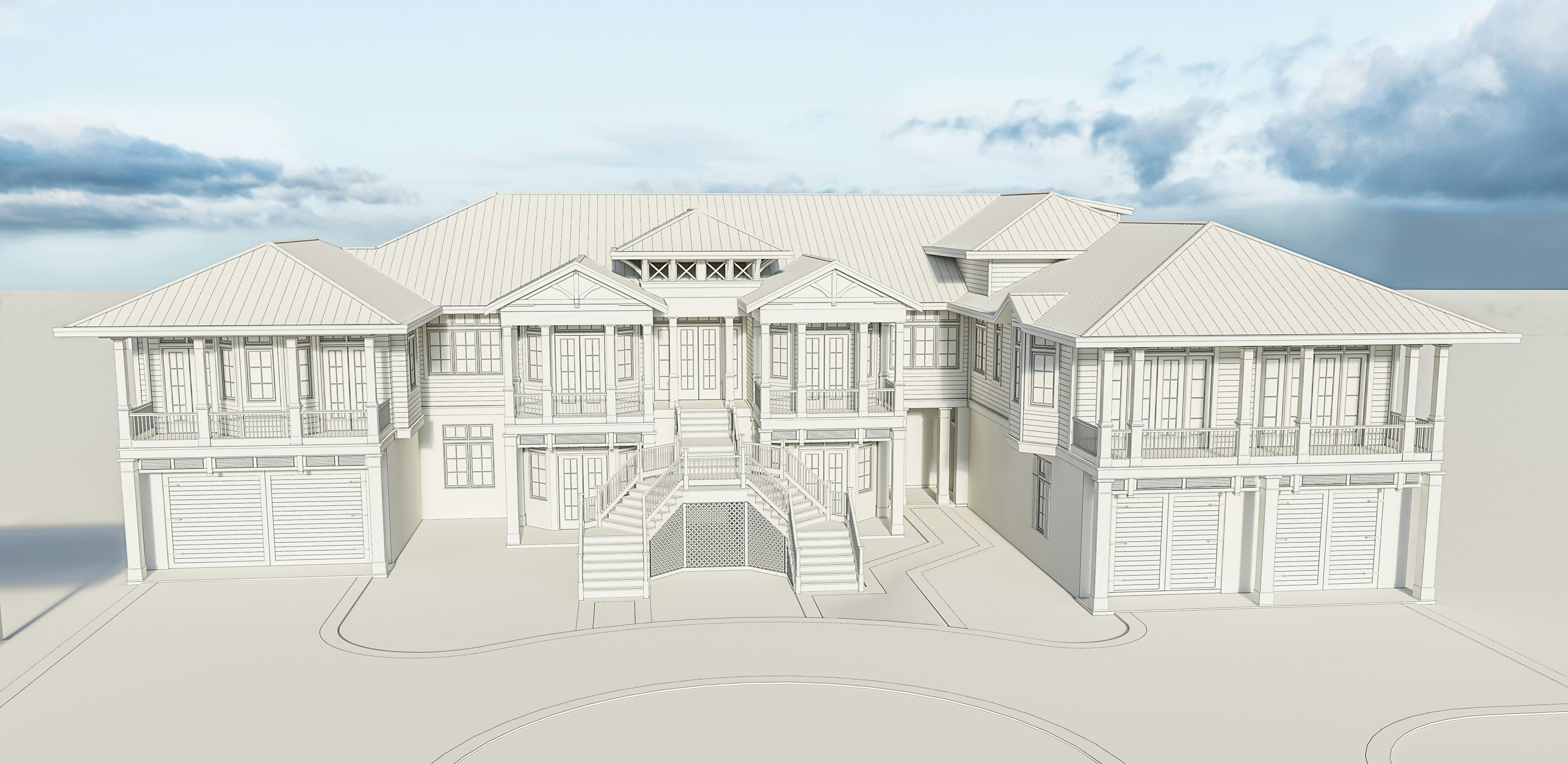
Introduction to SketchUp in Interior Design
SketchUp is a widely acclaimed 3D modeling software that has revolutionized the landscape of interior design. It is particularly favored by architects, designers, and DIY enthusiasts due to its intuitive interface and comprehensive toolset, allowing users to easily create intricate models of interior spaces. With a strong emphasis on usability, SketchUp democratizes the design process, making it accessible for both professionals and those new to the field.
The software’s significance in interior design lies in its ability to facilitate quick conceptualizations and enable detailed visualizations of various design elements. SketchUp offers a versatile set of features, including drawing tools for creating detailed floor plans, the ability to add textures and colors, and the incorporation of furniture and fixtures from its extensive 3D Warehouse. This vast repository contains user-generated models that can be imported directly into projects, saving time and enhancing creativity.
One of the standout aspects of SketchUp is its seamless integration of real-world metrics, which allows designers to ensure accuracy in their projects. This precision is invaluable when creating environments that not only look aesthetically pleasing but also function effectively. Furthermore, the software supports plugins and extensions that enhance its core capabilities, tailoring it to specific needs in the interior design profession.
Additionally, the collaborative functionalities of SketchUp make it an ideal choice for team-oriented projects, enabling multiple users to work simultaneously on design proposals. This fosters a more dynamic communication process between designers and clients, ensuring that feedback can be incorporated in real-time. Overall, SketchUp stands out as a practical tool that merges sophistication with simplicity, empowering designers to bring their visions to life in a highly accurate 3D format.
Getting Started: Setting Up Your SketchUp Workspace
Embarking on your journey with SketchUp for interior design begins with setting up a workspace that meets your specific needs. The first step is to customize the toolbars according to your design preferences. SketchUp offers a variety of built-in toolbars, and you can add or remove tools by navigating to the “View” menu at the top, selecting “Toolbars,” and then checking or unchecking the desired options. Customizing the toolbars allows for quick access to essential tools, streamlining the design process.
Next, importing templates can significantly enhance your workflow. By starting with a predefined template, you can save time and ensure that your project conforms to standard practices. To import templates, go to the “File” menu and choose “New from Template”, where you can select a suitable one from the options provided or download more from the SketchUp website. Opting for a template that includes dimensions and scaling tailored for interior design can provide a solid foundation.
Understanding the SketchUp interface is crucial for effective project management. The interface includes a drawing area, menus, and a variety of dialog boxes. Familiarizing yourself with the location of these elements is essential, as it will help in executing commands with ease. The default settings in SketchUp are suitable for most interior projects; however, configuring the units of measurement is critical. To adjust these settings, navigate to “Window” then “Model Info,” select the “Units” option, and choose the dimensions that best suit your project requirements.
Finally, creating a new project involves selecting the appropriate dimensions and scale to represent your design accurately. SketchUp allows you to input specific measurements, ensuring precision in your interior layouts. This attention to detail will facilitate realistic modeling of your design vision.
Creating Stunning Interior Designs with SketchUp
Creating impressive interior designs using SketchUp begins with understanding the software’s basic tools and functions. The first step in this process is to draw the walls of your room. This can be achieved by selecting the ‘Line’ tool to outline the room dimensions accurately. Once the walls are established, designers can enhance their structure by setting the appropriate wall thickness. This critical foundation serves as the basis for all subsequent elements in the design.
Next, incorporating windows and doors is essential for a realistic design. The ‘Rectangle’ tool facilitates the creation of openings in the walls. After defining the positions for windows and doors, the ‘Push/Pull’ tool can be utilized to extrude these elements to the desired depth, mimicking actual architectural features. This level of detail significantly enhances the visual appeal of the design.
Textures and materials play a vital role in the overall aesthetic of the interior. SketchUp provides a wide array of textures that can be applied to floors, walls, and ceilings. Designers can access the ‘Materials’ panel to explore different finishes and colors, allowing for a more personalized design experience. Applying appropriate materials not only adds realism but also helps convey the intended mood of the space.
Incorporating furniture, lighting, and decor is the next phase, where the design truly comes to life. Utilizing the ‘3D Warehouse’ feature in SketchUp, users can import ready-made furniture models to populate their designs efficiently. To create a more inviting atmosphere, it is crucial to integrate lighting elements. By adding light fixtures and adjusting their intensity and shadows, designers can provide depth and dimension, creating a welcoming environment.
In conclusion, SketchUp offers a powerful platform for creating stunning interior designs through its intuitive tools and vast library of resources. By mastering the fundamental techniques of drawing walls, adding openings, and applying materials, along with thoughtful placement of furniture and lighting, users can craft realistic and appealing interior layouts that capture their vision.
Advanced Techniques and Tips for Improving Your Designs
Mastering advanced techniques in SketchUp can significantly enhance your interior house and building designs. One key area to explore is the use of plugins and extensions, which expand the software’s capabilities. By integrating popular plugins such as V-Ray for rendering or SketchUp’s own 3D Warehouse for components, designers can streamline workflows and achieve more detailed results. These tools not only facilitate creativity but also save time, allowing for a more efficient design process.
Creating custom components is another technique that can elevate designs. Instead of relying solely on pre-made models, designers can create their own assets that fit specific project needs. This might include custom furniture, fixtures, or architectural elements. Utilizing the component feature allows designers to replicate and modify these assets easily, promoting efficiency and consistency across projects.
Additionally, optimizing designs for rendering is crucial, especially in professional environments where visual presentation matters. This can involve reducing polygon counts, using appropriate texture resolutions, and organizing models into layers for easier management. Implementing a methodical approach to your design layout can also prevent future issues, particularly when it comes to rendering complex scenes.
Troubleshooting common issues is part and parcel of the design process. Whether it’s resolving problems with imported models or ensuring proper material applications, knowing how to navigate these challenges will save you valuable time. Engaging with the SketchUp community can be beneficial, as seasoned designers often share insights on best practices that can help refine your approach.
Combining these advanced techniques will empower you to produce high-quality interior design projects, showcasing your skills and enhancing your professional portfolio. Developing a habit of continuous learning and experimentation with these tools will ultimately lead to more innovative designs.